
How to Sit Ergonomically with a Laptop
Avoiding Back & Neck Pain While Working
How to Sit Ergonomically with a Laptop – Avoiding Back & Neck Pain While Working
In a lot of cases, we are never officially taught how to sit appropriately when using a laptop. You place it on a table, maybe a sofa, or even your lap, and that’s that.
Here’s the thing: laptops are great for flexibility, not so much for posture. But with a few tweaks to your set-up, you can work without that end-of-day ache in your back or shoulders.
RECOMMENDED BY THE FELLOWES WORKLIFE COACH
Most of us naturally hunch over a laptop. It's not just you; it’s pretty much everyone. The screen’s too low, so your neck leans forward, your shoulders follow, and before you know it, “tech neck” becomes your new normal.
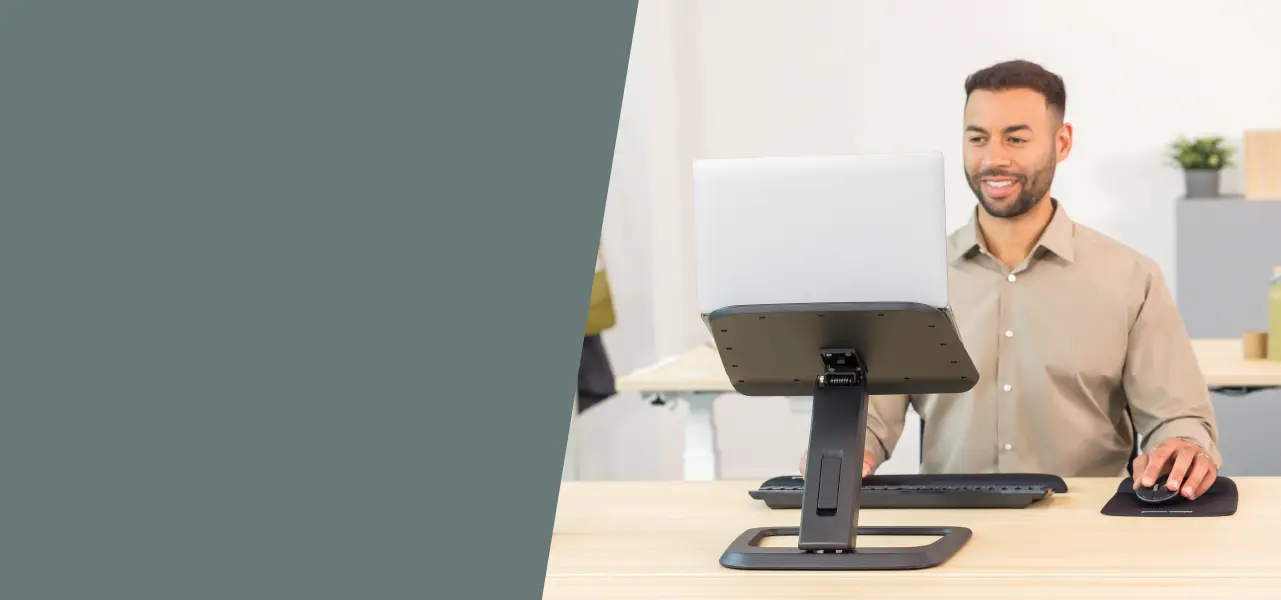
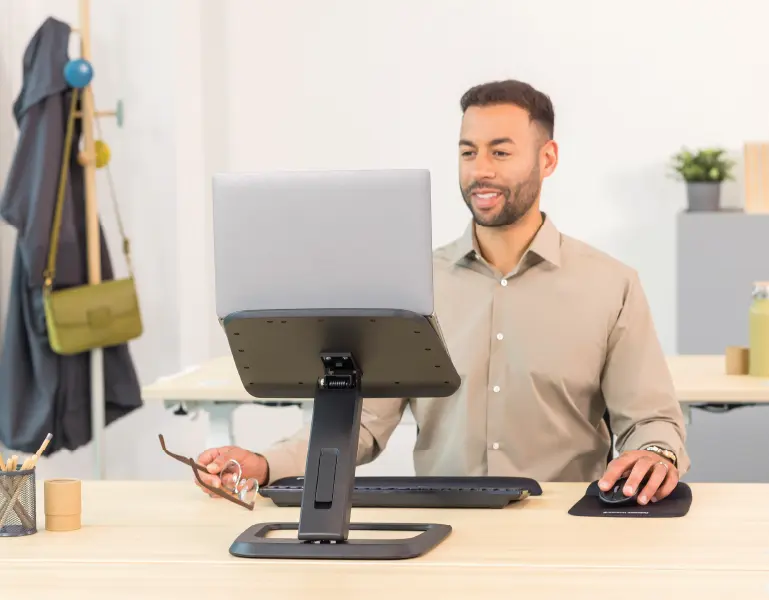
To fix this, you should raise your laptop up so the top of the screen is at eye level. At Fellowes, we have ideal solutions to help make this adjustment a reality. If you are looking for a portable, clean-looking, and adjustable laptop stand, we recommend you check out one from our range, such as the Breyta™ Laptop Stand.
Here at Fellowes, each of our ergonomic products are independently assessed and certified by FIRA International. This means we can safely say 100% of Fellowes laptop stands are ergonomic!
2 - Use an external keyboard and mouse
It's here where people often mess up. Once your screen is lifted, your keyboard’s going to be too high to use comfortably, which can lead to wrist pain and awkward arm angles.
Purchasing an external keyboard and mouse is the only true fix for this issue. There are many ergonomic friendly external keyboards and mice (like the Breyta™ Plus Ergonomic Vertical Mouse) on the market, which are designed to reduce strain. When paired with wrist rests, they keep your hands in a more natural position. It’s one of those “once you switch, you won’t go back” scenarios that we so often encounter in our daily working lives.
Kitchen chairs, bar stools, or your old university desk chair are most likely not giving your lower back much love.
To fix this, your hips should be level with or slightly higher than your knees, and your feet should rest flat on the floor or on a footrest. A good back and lumbar support fills the gap between your lower back and the chair, promoting correct alignment and helping maintain the spine's natural S-shape. Meanwhile, seat cushions can relieve pressure on the tailbone and encourage an upright, balanced posture.
These simple additions can transform an unsupportive seat into a back-friendly setup without the cost of a new chair.
It may sound like a relatively small problem, but dangling feet or awkward leg angles can cause havoc for your posture. A footrest, like the Fellowes Hana™ LT Sit-Stand Foot Rest, helps by giving your feet a solid surface to rest on.
Ideally, you want your feet flat and your thighs sloping very slightly downwards. That kind of position takes pressure off your lower back and helps you sit more comfortably without constantly adjusting yourself. It’s one of those little things that doesn’t seem important until you try it, and then you realise how much better it feels.
5 - On-the-go? It’s still worth doing right
Are you a remote worker and find that your laptop is generally in different places every week? There are still solutions and products that can aid you in sitting ergonomically.
There are compact tools for travel or hot-desking, such as portable laptop risers and lightweight mice. The goal isn’t perfection, but rather consistency. Try to keep your head upright, your hands relaxed, and your body out of “shrimp mode” as much as possible.
Wondering how to work ergonomically with a laptop in five different locations? Pack the basics in a Breyta™ Laptop Carry Case for a 2 in 1 design that includes a storage/carry case and laptop riser in one. With five height settings, the riser helps you find a comfortable, ergonomic position. Plus, the built-in handle, secure lock, and shoulder strap make it easy to carry your laptop wherever you go.
6 - Keep moving during the day
No chair, stand, or gadget is going to solve everything if you stay frozen at your desk for hours straight. Getting into the habit of alternating between sitting and standing throughout your day is a simple way to stay more active while working.
No matter your position, good posture still matters; so, keep things aligned and remember to take regular breaks to reset.
As highlighted in zone four of the Fellowes Workspace Zone Approach®, a helpful guide designed to help mitigate health problems and improve workstation ergonomics and employee wellbeing, using a height-adjustable desk or a sit-stand converter makes it easier to build movement into your routine without disrupting your workflow.
Even just looking away from the screen, rolling your shoulders, or walking to make tea helps reset your posture.
How to sit ergonomically with a laptop
So, how to sit ergonomically with a laptop? Lift the screen, use a separate keyboard and mouse, give your back and feet proper support, and don’t stay still forever.
There’s no single “perfect” way to work, but there are lots of ways to make it feel better. Your posture doesn’t have to suffer just because you’re using a laptop, and small changes can lead to big improvements.
Need the gear to get started? It all begins with raising your laptop screen to the right height. Head to Fellowes and discover our range of laptop stands before exploring the full range of ergonomic tools made for real life, whether you’re working from the office, the kitchen, or anywhere in between.