The best work posture for comfort and productivity
The best work posture for comfort and productivity
Poor posture during work is rarely caused by how someone naturally sits. It’s usually the result of a workspace that doesn’t support the body properly. A chair without lower back support, a screen positioned too low, or a desk that puts the arms at an awkward angle can all lead to discomfort over time. These issues build gradually and often affect the lower back, shoulders, neck, or wrists.
Improving posture starts with addressing the setup. If the furniture fits the task and the person using it, the body stays aligned with less effort. The goal is not to hold a rigid position, but to work in a way that avoids unnecessary strain.
RECOMMENDED BY THE FELLOWES WORKLIFE COACH
Maintaining the best posture for working at a desk
The best posture for computer work is the one which your body can stay in comfortably, supported by the right equipment. Sitting or standing, the principles stay consistent. Joints should be in line. The spine follows its natural curve. Movement stays relaxed and balanced.
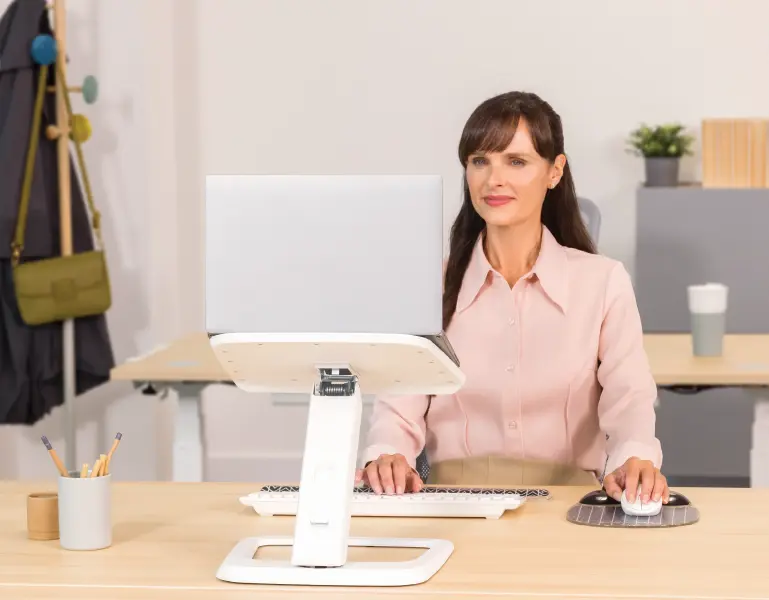
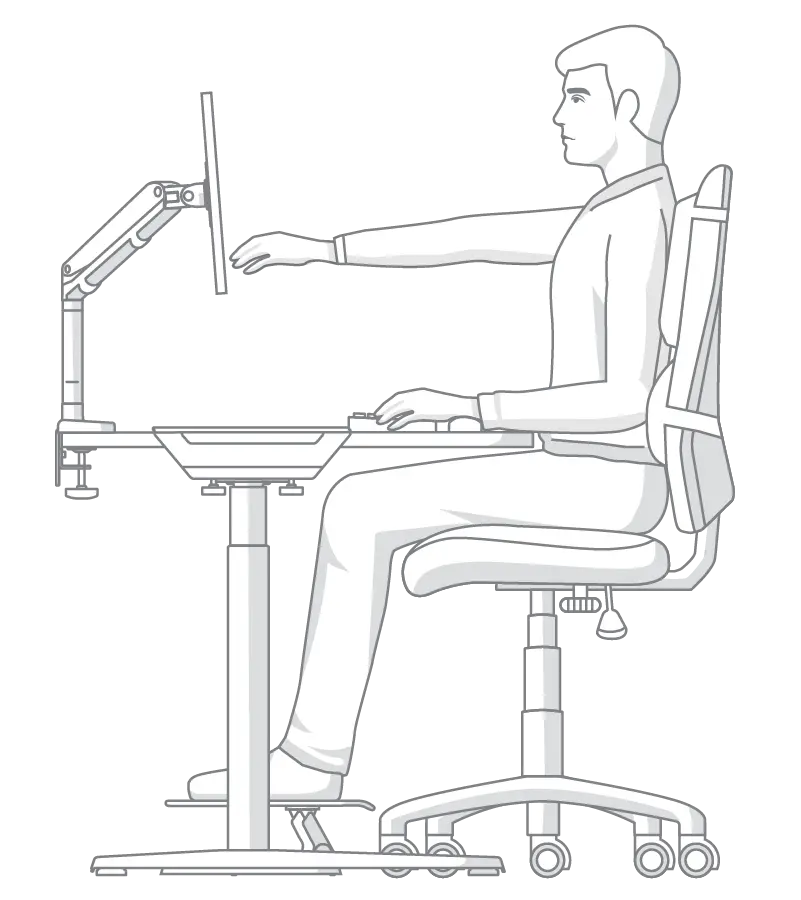
While seated, your hips should sit just higher than your knees. Feet stay flat, either on the floor or a footrest. Elbows rest near your sides, bent to roughly 90 degrees, wrists stay level, shoulders shouldn’t lift or pull forward. The screen needs to meet your eye line, not the other way around.
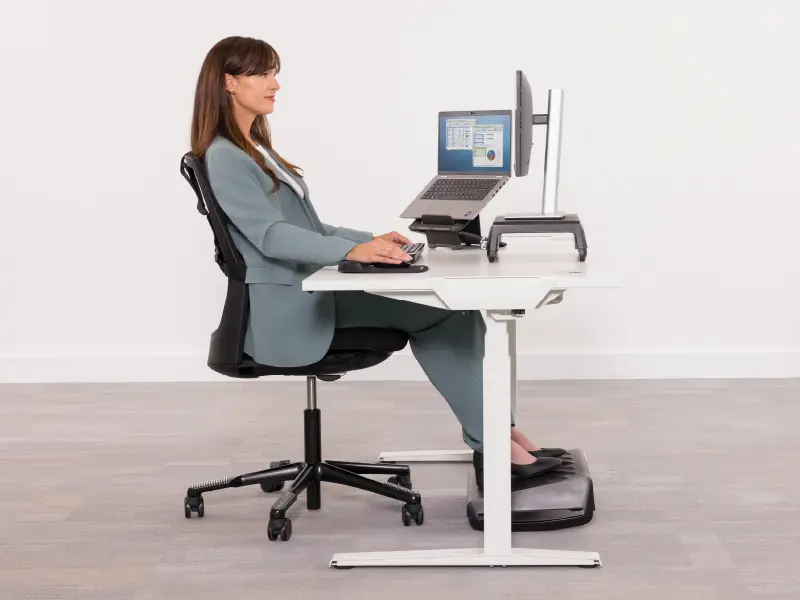
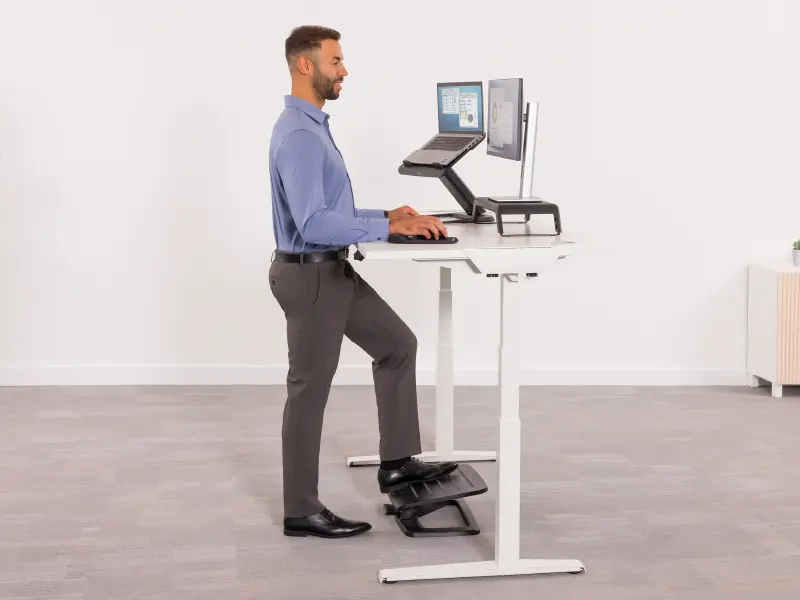
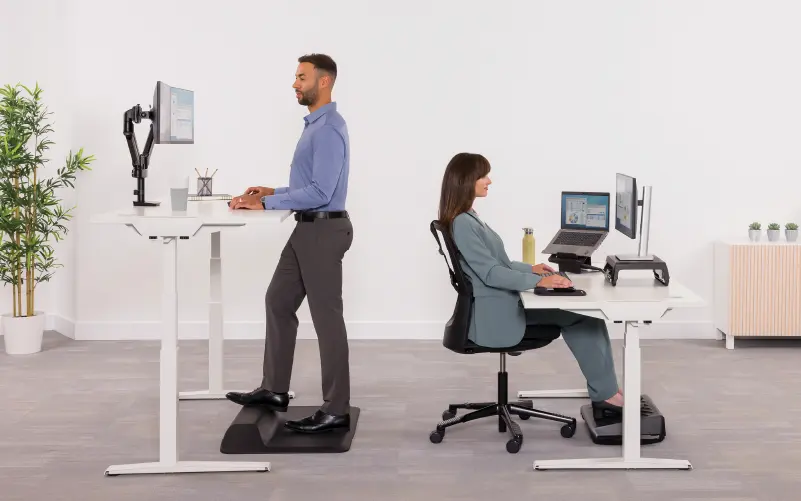
The same approach applies when standing. Elbows should remain close to the sides, bent at a natural angle, with wrists aligned to the keyboard. The screen should remain directly in front of you, positioned so the neck stays neutral. Keep your weight evenly distributed across both feet and avoid locking the knees.
Changing your stance throughout the day can help reduce lower back tension, especially when using a height-adjustable desk.
Posture mistakes that lead to discomfort at work
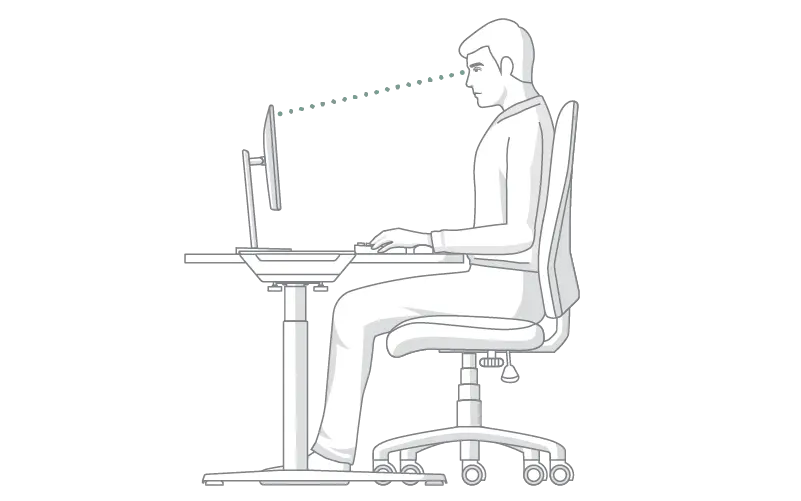
Low Screen Position
When a screen sits too low, your head moves forward, straining your neck. If a chair lacks lumbar support, the spine rounds, causing lower back pain.
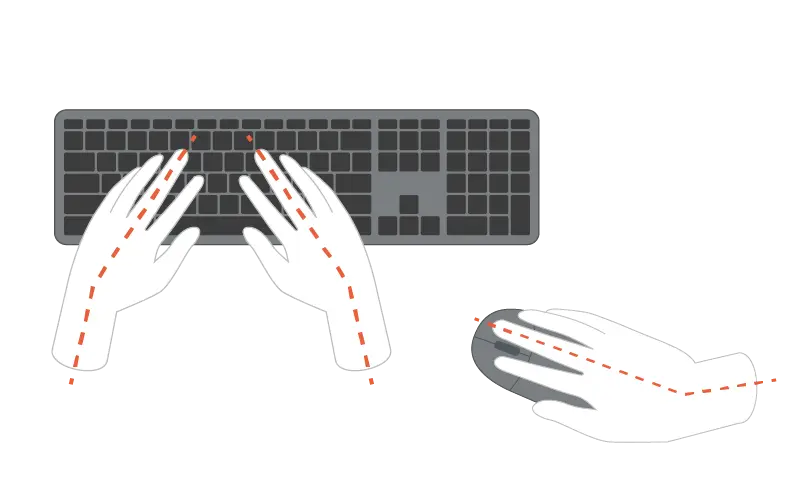
Reaching to Type and Mouse
Keyboards set too high or too far away cause your arms to stretch, leaving them unsupported while typing. This creates tension in wrists and shoulders, resulting in fatigue and strain injuries.
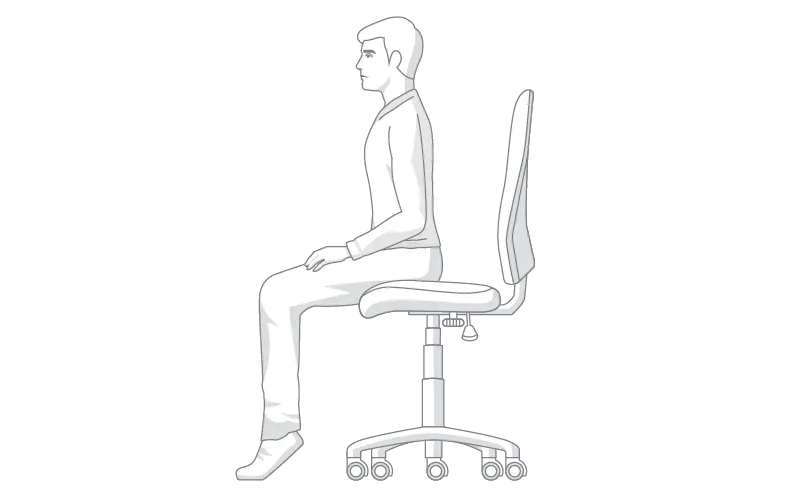
Unnatural Sitting Position
Tucked feet, locked knees, and chairs without seat depth support shift the body into shapes it can’t hold comfortably.
The most common posture problems come from setups that make slouching inevitable. If you’re constantly adjusting or catching yourself leaning forward, the setup needs to change.
Tips and tricks for supporting the best work posture
- Raise your screen to meet your eye line. Use a monitor arm or laptop stand.
- Use a separate keyboard and mouse with a laptop to avoid cramped or low typing positions.
- Sit fully back in your chair so the lumbar support is in contact with your lower spine.
- Use a footrest if your feet don’t reach the floor – this helps balance weight and ease lower back tension.
- Position your keyboard and mouse close enough to keep your elbows by your sides.
- If you find yourself leaning forward, check screen height or viewing distance, not posture.
- When standing, change your stance regularly and avoid locking your knees.
- Don’t rely on reminders to “sit up straight.” Instead, design your setup to support you naturally.
- Keep frequently used items within easy reach to prevent repeated twisting or leaning.
- Take short movement breaks throughout the day – even 30 seconds of walking or stretching can help reset posture.
- Adjust screen brightness and contrast to reduce the urge to lean in. Poor visibility often leads to forward head posture.
- If possible, check the angle of your seat – a slight forward tilt can improve circulation and reduce pressure on the back of the legs.
These adjustments don’t just improve comfort; they reduce the strain that builds up when posture is unsupported.
Setup that holds it together
Posture holds when the space around you makes it easier to move well. The Fellowes Workspace Zone Approach™ recognises that no single adjustment solves discomfort; it’s the connection between every part of your setup that makes the difference. From a monitor arm that keeps your screen at the right height, a footrest that grounds your legs, a seat cushion, back and lumbar support, and even the way your desk is arranged, each element plays a role, creating a workspace that works with your body.
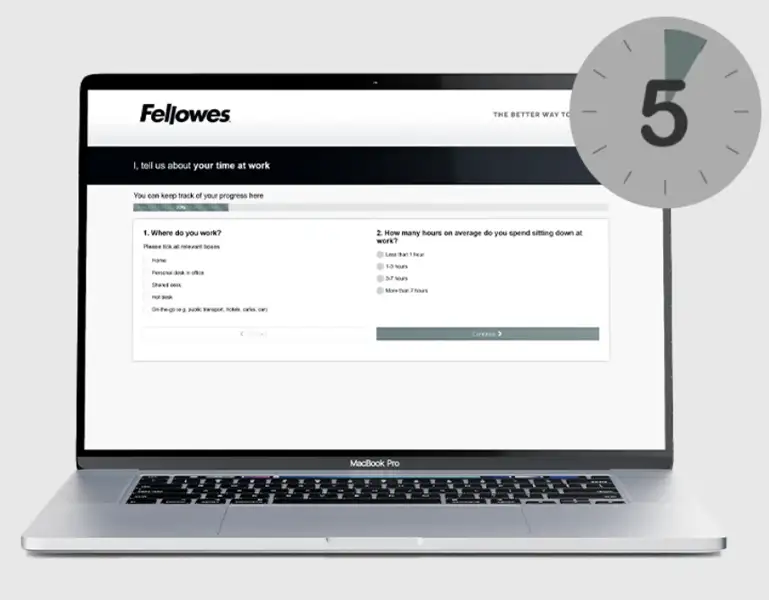
Not sure where your setup stands? Take the guesswork out of it with the Fellowes Healthy Workstation Assessment — a free online tool that identifies problem areas in your current workstation and delivers personalised ergonomic tips in under five minutes. It’s a fast, practical step towards a setup that supports you better and helps prevent the strain that builds throughout the day.
When everything is aligned, you’re less likely to shift, strain, or end the day with a sore back. And when the setup is doing its job, you’re free to focus on yours.

Not sure where your setup stands? Take the guesswork out of it with the Fellowes Healthy Workstation Assessment — a free online tool that identifies problem areas in your current workstation and delivers personalised ergonomic tips in under five minutes. It’s a fast, practical step towards a setup that supports you better and helps prevent the strain that builds throughout the day.
When everything is aligned, you’re less likely to shift, strain, or end the day with a sore back. And when the setup is doing its job, you’re free to focus on yours.
Fellowes Healthy Workstation Assessment
Not sure where your setup stands? Take the guesswork out of it with the Fellowes Healthy Workstation Assessment — a free online tool that identifies problem areas in your current workstation and delivers personalised ergonomic tips in under five minutes. It’s a fast, practical step towards a setup that supports you better and helps prevent the strain that builds throughout the day.
When everything is aligned, you’re less likely to shift, strain, or end the day with a sore back. And when the setup is doing its job, you’re free to focus on yours.
Fellowes Healthy Workstation Assessment